Stock management
Find and inspect a component
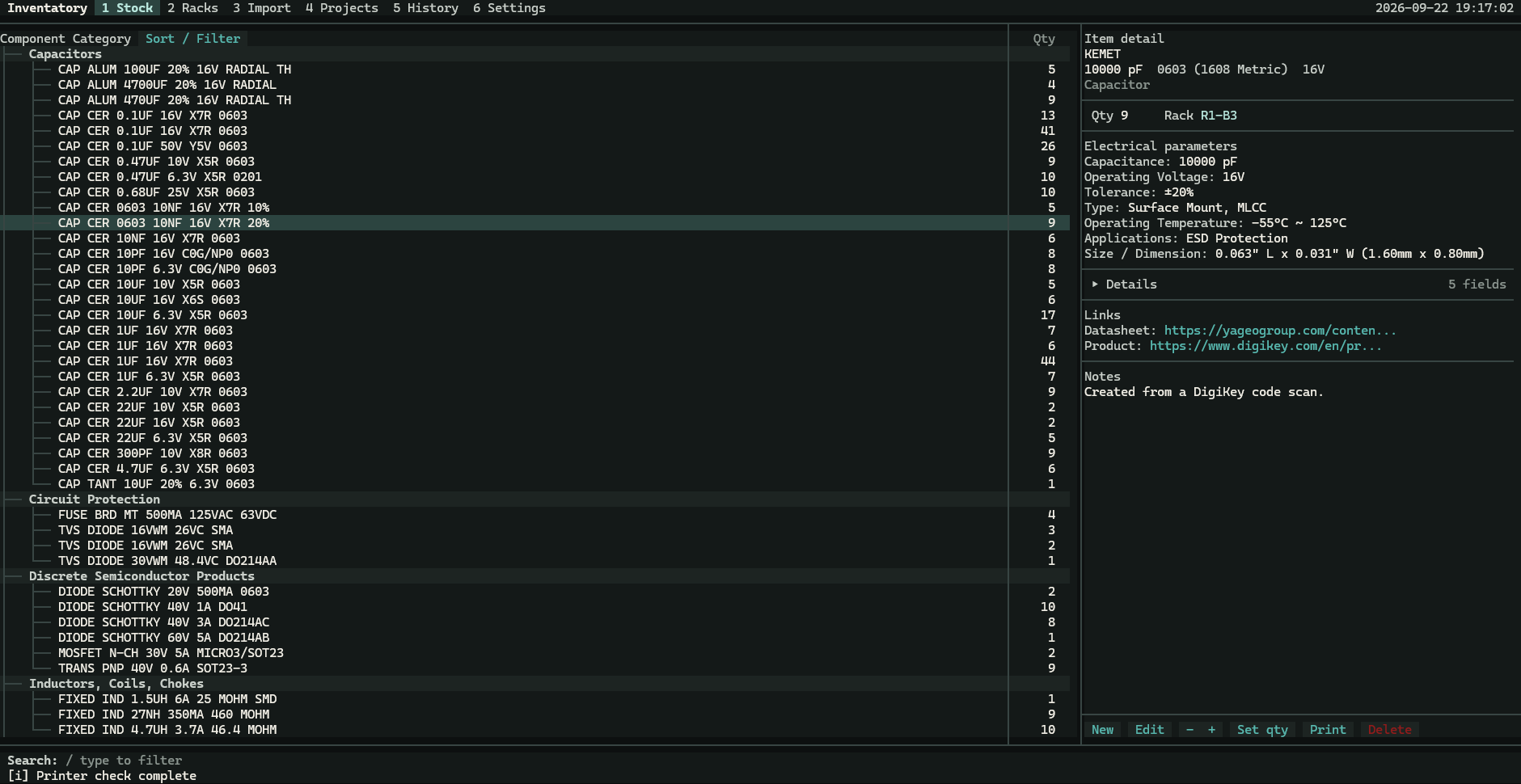
Section titled “Find and inspect a component”Open 1 Stock and type / to filter by part, category, tag, parameter, location, SKU, status, or quantity expression. Select a row to inspect the component’s details.
Press f, choose filters from Actions, or click Sort / Filter. Sort by quantity or name and limit results by modification date. Reset filters restores all dates and A–Z sorting.
Edit a record
Section titled “Edit a record”Choose New or Edit. Editing happens in the detail area of Stock. Choose a field, enter its value, and save the working copy with s. Escape cancels the active field or edit.
Use −, +, or Set qty for quantity work. Delete asks for confirmation and records the removal in History. Print sends a label through the configured printer.
Set reorder thresholds
Section titled “Set reorder thresholds”Each part has a Reorder threshold in Edit. A positive value overrides the global low-stock setting. 0 uses the global setting. The effective threshold is used by search, rack indicators, and stock warnings.
Count physical stock
Section titled “Count physical stock”- Choose Start stocktake from Actions, or press
t. - Enter a count for the selected part.
- Use
j/kor the arrow keys to move between parts. - Count every part. Finish remains unavailable until the full count is complete.
- Press
sto save the session.
Counts are held in memory until you save. q or Escape cancels without changing stock. Saved corrections are recorded in stock movement history; the selected part also shows recent movements.
Understand saved changes
Section titled “Understand saved changes”Completed inventory actions create local history commits. See History for snapshots, reversal, and durable undo. If saving fails, resolve the reported error before starting a history operation.